
PDF Coloring Pages Without Border Cutoffs: Step-by-Step Guide
Downloading detailed coloring pages in PDF format is fantastic for high-resolution line art, but pressing "Print" often leads to frustration: cut-off borders, missing edges, or clipped signatures.
Most standard home printers automatically apply a "printable margin" zone (usually 0.25 to 0.5 inches) where the printhead cannot lay down ink. If your PDF design reaches all the way to the edges of the page, your printer will crop it unless you adjust your settings.
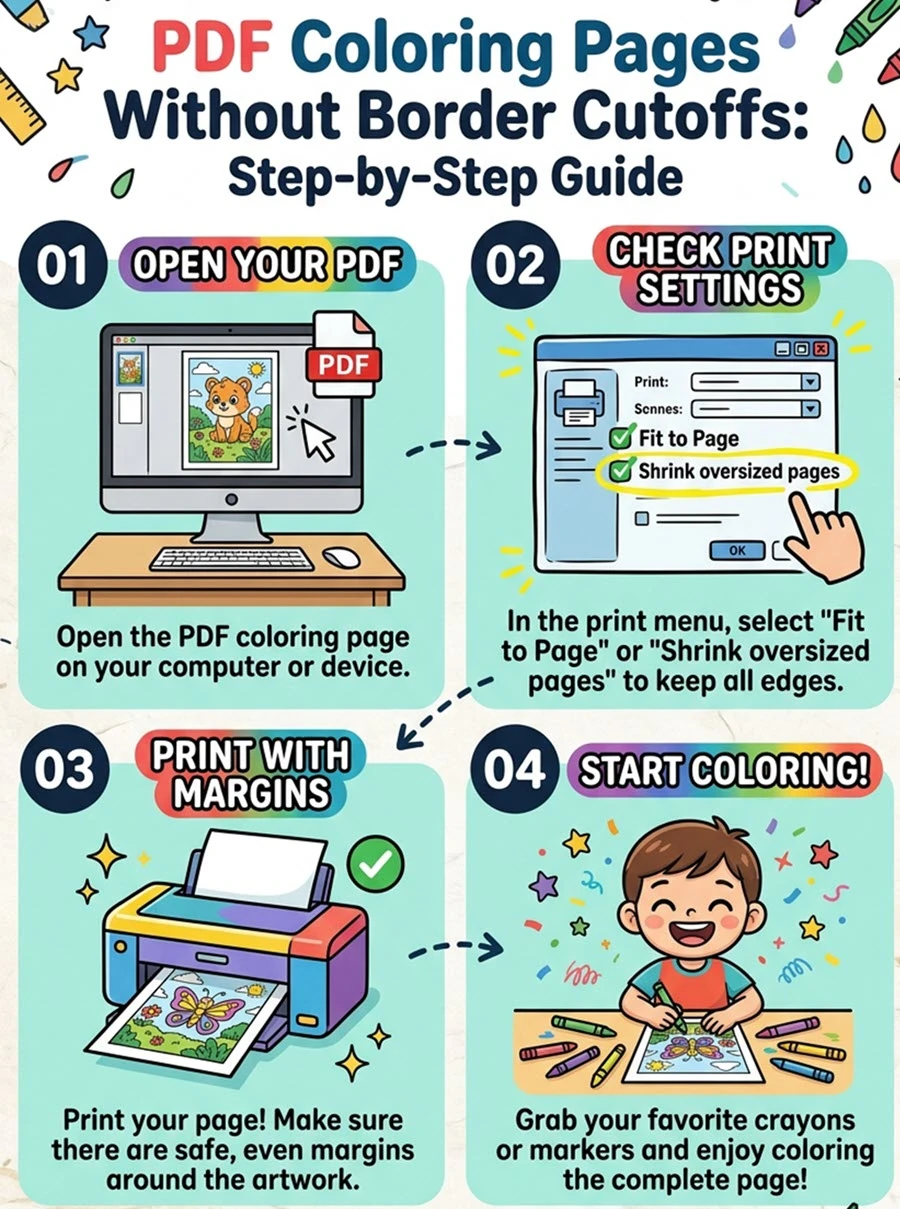
Follow this step-by-step guide to ensure your coloring pages print complete and centered every single time.
Step 1: Use a Dedicated PDF Reader
While web browsers (like Chrome, Edge, or Safari) can open PDFs, their print dialogs offer limited margin control.
Best Practice: Download and open your PDF file using a dedicated reader like Adobe Acrobat Reader (free) or Foxit Reader.
Why: Dedicated PDF software gives you precise scaling controls, printable area previews, and auto-centering options that browser engines lack.
Step 2: Select the Correct Scaling Settings
The main cause of cropped borders is printing at "100% Scale" or "Actual Size." When a design exceeds your printer’s hardware printable area, the outer edges get lost.
In your PDF reader’s print window, locate the Page Sizing & Handling section and choose one of the following options:
Fit / Fit to Printable Area: Automatically resizes the artwork so the entire line art fits strictly inside your printer's non-printable margins.
Shrink Oversized Pages: Only scales down pages that exceed the printable area while leaving smaller pages untouched.
Custom Scale (92% – 95%): If "Fit" leaves too much whitespace, manually adjust the scale percentage down slightly until all borders fall safely within the print preview box.
Step 3: Enable Borderless Printing (If Supported)
If you want your coloring page to fill the sheet completely without any white borders around the artwork, check if your printer supports Borderless Printing.
Open your print window and click Properties, Preferences, or Printer Setup.
Look for the Paper / Quality or Page Setup tab.
Check the box labeled Borderless or Borderless Printing.
Select your exact paper size (e.g., Letter or A4).
Note: Borderless mode works best on photo paper or heavy cardstock, as standard copy paper can saturate and curl slightly along the outer edges.
Step 4: Match Paper Size & Orientation Settings
Border cutoffs frequently occur when the software settings do not match the physical paper in your tray:
Paper Size Mismatch: Ensure your PDF print setting matches your paper stock—US Letter (8.5 x 11 inches) for North America or A4 (210 x 297 mm) for Europe and most international regions.
Auto Rotate and Center: Ensure the "Auto-rotate and center" box is checked. This turns landscape designs automatically and prevents the artwork from shifting off-center.