
Printing PDF coloring pages is the single best way to ensure crisp, smudge-free line art for your creative projects. While images or screenshots often pixelate and warp when sent to a printer, high-resolution PDFs are engineered to preserve exact dimensions and sharp boundaries. Whether you are printing intricate adult mandalas, vibrant kids' activity books, or your own digital designs, this step-by-step guide will walk you through choosing the right paper, configuring perfect printer settings, and troubleshooting common issues.
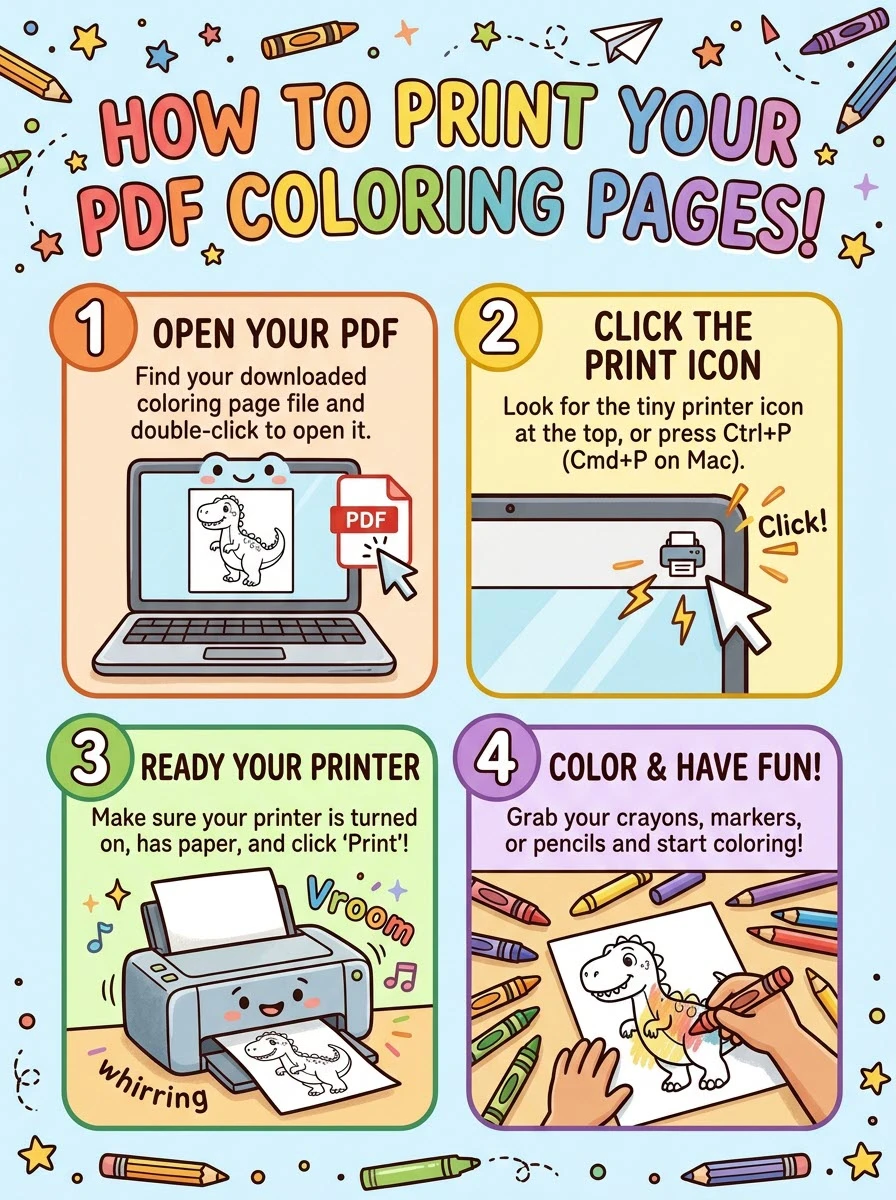
Step 1: Download and Open the PDF File
Always download the actual PDF file rather than printing directly from a web preview or using a compressed PNG/JPEG version.
1. Click Download PDF on your preferred coloring platform (such as Coloring Files).
2. Open the file using a dedicated PDF viewer like Adobe Acrobat Reader or Apple Preview for the most accurate margin handling. If you are on a mobile device, use its built-in PDF viewer.
Step 2: Choose the Perfect Paper
The medium you plan to color with should dictate the paper stock you load into your printer tray.
| Coloring Tool | Paper Type | Why It Matters |
|---|---|---|
| Crayons & Colored Pencils | Standard Copy Paper (80–90 gsm) | Lightweight paper handles dry wax and colored graphite easily without bleeding. |
| Markers & Gel Pens | Heavyweight Laser Paper (120 gsm) | Prevents ink from feathering or bleeding through the page. |
| Alcohol Markers & Watercolors | Smooth Cardstock (380-micron or 110lb+) | Thick stock holds wet media without warping or peeling. Always use a backing mat to protect surfaces. |
Step 3: Dial In Your Printer Settings
Before hitting the print button, trigger the print dialog window by pressing Ctrl + P (Windows) or Cmd + P (Mac) and adjust these essential settings:
• Match the Paper Size: Verify if your document is formatted for US Letter (8.5 x 11 inches) or A4 (210 x 297 mm). Mismatched sizes will cause the edges of your coloring page to cut off.
• Scale Accurately: If the PDF is pre-formatted with safe margins, select Actual Size or 100% Scaling. If your print preview looks uneven or cut off, switch to Fit to Page or Scale to Fit.
• Toggle Black & White / Grayscale: Even though the digital file appears black and white, printing in Grayscale saves precious color ink and produces crisp, clean outlines.
• Adjust Media Quality: For thick cardstock or heavy paper, open your printer's advanced properties and change the paper type to Heavyweight or Cardstock. This slows down the internal rollers and ensures the toner or ink fuses perfectly without flaking.
Step 4: Printing Specific Pages from a Book
If you've downloaded a full digital coloring book but only want to print a single design, do not waste your paper. In your print window, locate the Pages configuration:
1. Change the setting from All to Custom.
2. Enter the specific page number you wish to print.
3. For a range of pages, use a dash (e.g., 3-7 to print pages 3 through 7).
Pro Tips for Flawless Coloring Pages
• The Ink Type Matters: If you color with alcohol-based markers (like Ohuhu or Copic) or watercolors, try printing with a laser printer. Laser toner is waterproof and won't smudge when it interacts with wet mediums. If using an inkjet printer, let the page dry completely before coloring.
• Test One First: Always print a single test sheet to check line clarity and margins before sending a massive batch to the printer queue.
• No Home Printer? Save your optimized PDF files to a USB flash drive or your phone. You can easily print crisp copies at a local library, office supply store, or copy shop for just a few cents per page.