
A Step-by-Step Artist's Guide
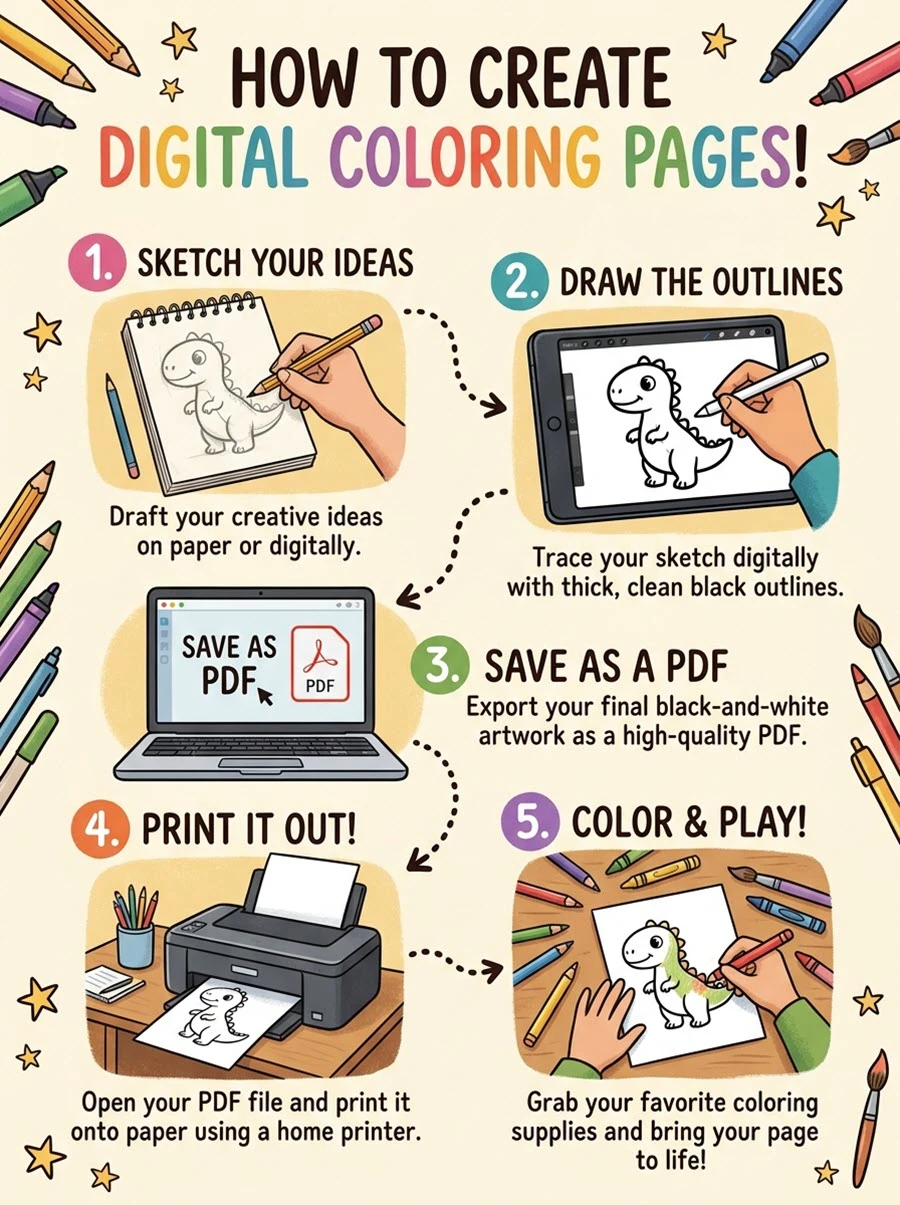
Creating your own digital coloring files is incredibly rewarding, whether you want to sell them as downloadable PDFs or print them for personal use. While drawing regular digital illustrations focuses on shading and blending, designing a coloring page requires a completely different mindset. Your priority shifts to creating crisp, continuous line art and leaves structural "blank spaces" that invite the colorist's creativity.
From setting up your digital canvas to exporting a print-ready file, here is the exact workflow I use to design professional coloring pages.
🎨 THE COLORING PAGE CREATION WORKFLOW
│ 1. Canvas │ ───> │ 2. Sketching │ ───> │ 3. Line Art │───> │ 4. Exporting │
│ 300+ DPI │ │ Loose Layout │ │ Ink/Monoline │ │ Vector PDF │
Step 1: Set Up an Ultra-High-Resolution Canvas
The most common mistake artists make when drawing coloring pages is working on a low-resolution canvas. If your canvas dimensions are too small, your lines will look pixelated, blurry, and unprofessional when printed.
• Set the DPI to 300 or Higher: Dots Per Inch (DPI) determines print quality. Never design a printable page below 300 DPI. If your hardware allows it, 400 DPI yields even sharper lines.
• Match Physical Paper Sizes: Set your pixel dimensions to match real-world paper. For example, a standard US Letter page (8.5 x 11 inches) at 300 DPI requires a digital canvas of 2550 x 3300 pixels. For an A4 page, use 2480 x 3508 pixels.
• Leave a Safe Margin: Keep your main artwork at least 0.5 inches away from the canvas edges. Most home printers cannot print borderless, so a built-in safety margin ensures the design won't get cut off.
Step 2: Sketch with "Coloring Composition" in Mind
Create a new layer for your rough concept sketch. Use a light color like light blue or a lowered opacity brush so it is easy to distinguish from your final line work later.
As you sketch, remember that you are building a framework for someone else to fill. Avoid overlapping complex shapes that create confusing shadows. Focus on clear silhouettes and leave varying sizes of negative space. A balanced coloring page balances large, open areas (ideal for gradients or marker blending) with tiny, intricate patterns that provide satisfying detail work.
Step 3: Ink with Closed, Monoline Brushes
Once your layout sketch is finalized, create a new layer on top called Line Art. This is where the magic happens.
• Pick the Right Brush: Avoid textured, chalky, or pressure-sensitive opacity brushes. They create semi-transparent pixels that look muddy when printed. Instead, select a Monoline brush or a clean Technical Pen brush. Turn the stabilization settings up to 40-50% to eliminate hand tremors and create perfectly smooth curves.
• Close Every Single Gap: Pay close attention to corners and intersecting lines. Do not leave tiny gaps where lines meet. If a line is left open, digital colorists won't be able to use the "Color Drop" or "Paint Bucket" tool without the color leaking out and flooding the entire canvas.
• Vary Line Weights intentionally: Use a thicker stroke (e.g., 8–10 pt) for focal points and outer silhouettes. Use a thinner line weight (e.g., 3–4 pt) for internal textures, delicate geometric background details, or minor details. This adds depth and visual hierarchy to your work.
Step 4: Clean Up and Export for Print & Digital
Before sharing your masterpiece, turn off your background sketch layer. Check your Line Art layer against a solid white background to ensure no stray marks or erasure artifacts are left behind.
To make your coloring page universal, export it in two distinct formats:
1. Print-Ready PDF: This preserves your vector boundaries and page margins perfectly, making it the easiest format for users to print directly from their home computers.
2. Transparent PNG: Exporting a high-resolution version with a transparent background allows digital colorists to easily import your artwork into apps like Procreate, slide a blank layer underneath your lines, change the blend mode to Multiply, and start coloring digitally.